Report Templates
Before you begin
Setup > Templates > Reports
A variety of Reports can be printed from Bluechip, with each of these reports being based on a templates. Bluechip is supplied with many Report templates, and you can design or import your own. You can also export Report templates, for use in other applications.
Procedure
-
Select . The Report Setup window appears.
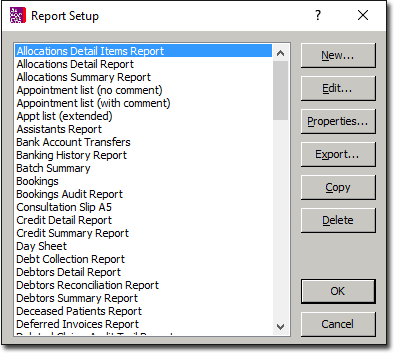
- To add a report template, continue now to Step 2.
- To edit a report template, locate and select the report template and then click Edit Your template is opened in Microsoft Word, where you can make the necessary changes.
- To copy a report template, locate and select the report template and then click

You will be prompted to give the copy a name, after which you will be returned to the Report Setup window where your new report template will be available. - To export a report template, locate and select the report template and then click

You will be prompted to select a location to export the template to. This also gives you an opportunity to rename the template, if you desire. - To delete a report template, locate and select the envelope template and then click Delete You will be prompted to confirm this action.
-
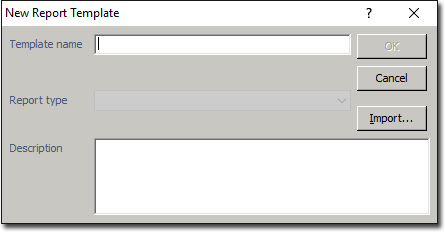
Click New The New Report Template window appears.