
To Finalise a Receipt or Rejection
Before you begin
Procedure
-
Select the claim within the Inpatient Medical Claiming window, and then click
either the Rejected or Receipt button.
These buttons become available only to claims that have a status of 'Ready to
Receipt' or 'Ready to Finalise (R)'. Subsequently, either the IMC Claim
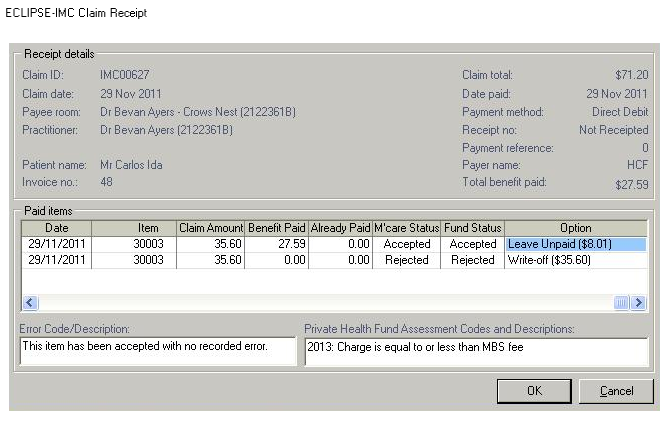
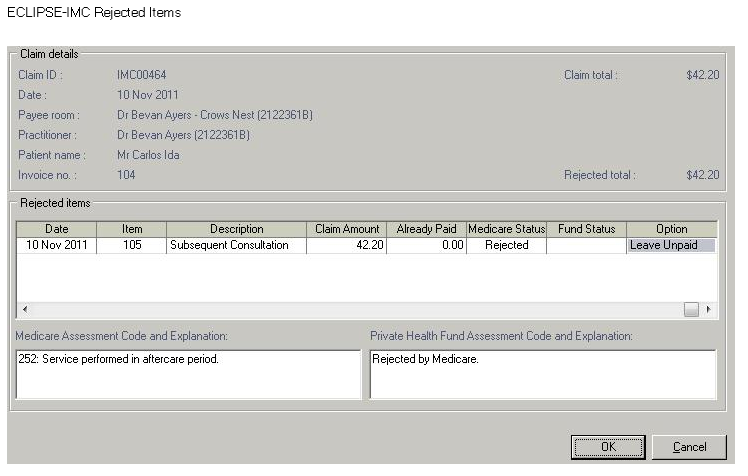
Receipt or Rejected Items window appears. The
example below shows the former, and in this particular example two items within the
claim have been accepted but a third has been rejected. Error codes and rejection
messages can be found at the bottom of this window for any selected service
item.
-
For each item in the claim, select an option to action from the Option column. Different options are available by clicking within the Option field to reveal a drop-down list of choices.
- Service items whose status is 'Accepted' can be simply left with the option to 'Accept' them; no further action is required on your part.
- Service items whose status is 'Rejected' will be flagged as 'Leave Unpaid' by default, as shown in the example above. Items marked as Leave Unpaid can be receipted against manually, or the invoice can be adjusted and resubmitted as a new claim. Alternative you can chose the Option of 'Write-Off', to write-off the rejected service item.
- For partially-accepted claims, if the benefit paid is greater than claimed amount, 'Sundry Invoice/Leave Overpaid' options are available.
- For partially-accepted claims, if the benefit paid is less than claimed amount, 'Write-off/Leave Unpaid' options are available.
-
Click OK when you are ready to proceed. After clicking
OK:
- For 'accepted items', a receipt is generated.
- For 'write-offs', a write-off is generated for the unpaid amount.
- For 'sundry invoices', a sundry invoice is generated for overpaid amounts.
- For 'leave unpaid', the unpaid amount is left outstanding.
- For 'leave overpaid', the excess amount is allocated to an overpayment.