
Colour Preferences
Before you begin
The Colour tab of User Preferences allows you to modify the colour of various components of the Bluechip interface. Combinations of colours can be saved as ' schemes', and selected on-the-fly, or saved to be used as the default for a given user.
Procedure
-
Click the Colours tab.
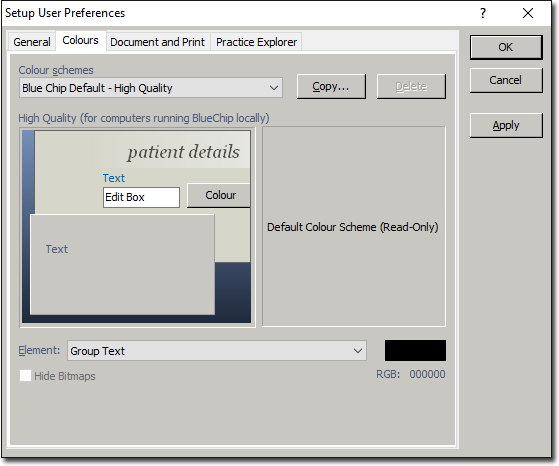
This tab displays the current colour scheme, as selected in the Colour Schemes drop-down box (located at the top of the window). You will also be able to see a preview of what the scheme looks like when applied to the Bluechip interface. -
When you are satisfied with the settings you have selected, either:
- Click

to apply the settings and keep the Setup User Preference window open, or - Click OK. to apply the settings and close the Setup User Preference window.
- Click