
Running the Restore Utility
Restore a backup.
Before you begin
Procedure
-
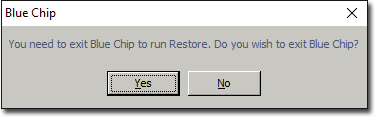
From within Bluechip, select . You will be prompted to exit Bluechip.
-
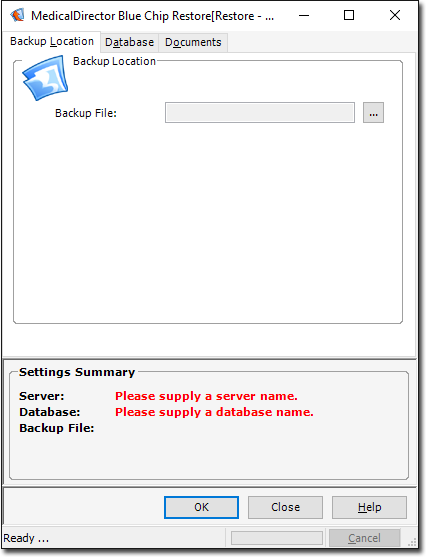
Click Yes to confirm. Bluechip will close, and the Bluechip Restore utility
appears.
-
Click
 Ellipsis to locate and select the backup file you want to
restore. You can verify that you have selected the correct backup via the Settings
Summary section of the window.
Ellipsis to locate and select the backup file you want to
restore. You can verify that you have selected the correct backup via the Settings
Summary section of the window.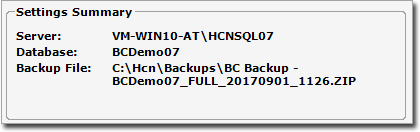
- Click OK to begin restoring your Bluechip data.
-
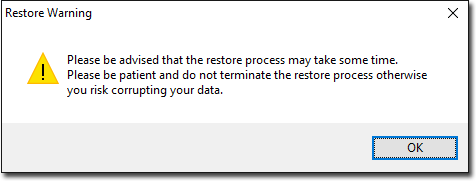
You will be alerted to the fact that the restore process may take some time, depending on the size of the Bluechip data you are restoring.
-
Click OK You will be alerted to the fact that restoring this
data will overwrite your existing data.
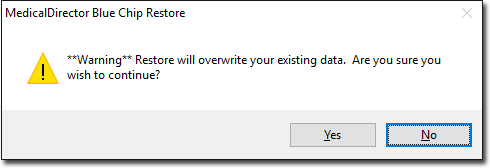
-
Click OK to confirm. The restore commences, and you will
notified when complete.
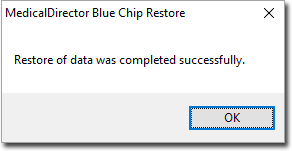
- Click OK to close the prompt.
- Click Close to close the restore utility.