
Submitting Claims for IHC
Before you begin
The following instructions can be used stand-alone, but are generally preceded by Invoicing for In Hospital Claiming.
This topic assumes you have created a Day Surgery episode for the IHC claim.
Procedure
-
After creating an invoice for
IHC, within the New In Hospital Claiming (IHC) form, click
Send to submit the claim. The In Hospital
Claiming (ECLIPSE) – Processing IHC window appears. If there is
any validation errors, the client adaptor will display the claim error and the claim
will not be submitted. If there is no claim error, the claim is submitted, and a
Claim ID is generated.
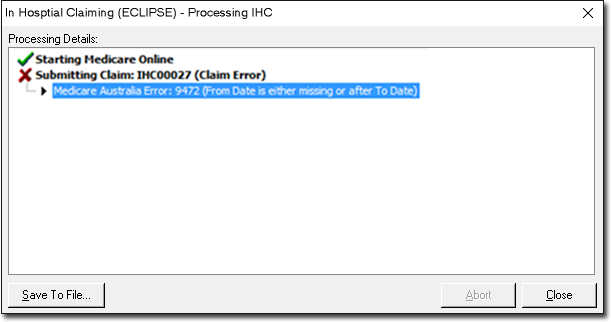
- Claim Error during submission - You can modify the data
to rectify the error. In the example below, the 'from' date should be before
the 'to' date, or must be entered. Once this is rectified, the claim can be
submitted successfully and a Claim ID will be generated.
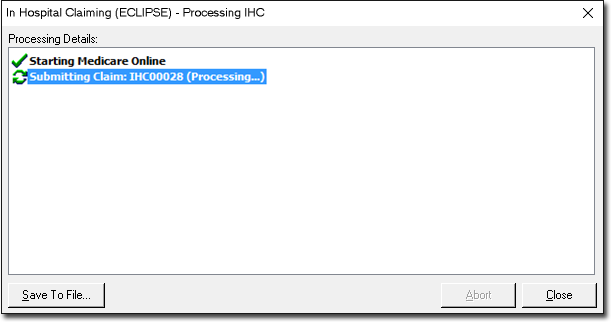
- No Claim Error - A Claim ID is generated.

- Claim Error during submission - You can modify the data
to rectify the error. In the example below, the 'from' date should be before
the 'to' date, or must be entered. Once this is rectified, the claim can be
submitted successfully and a Claim ID will be generated.
-
In the Practice Explorer window, select Medicare Australia
from the margin-menu. The submitted claim appears at the top of the list, with a
status of Awaiting Process Report.
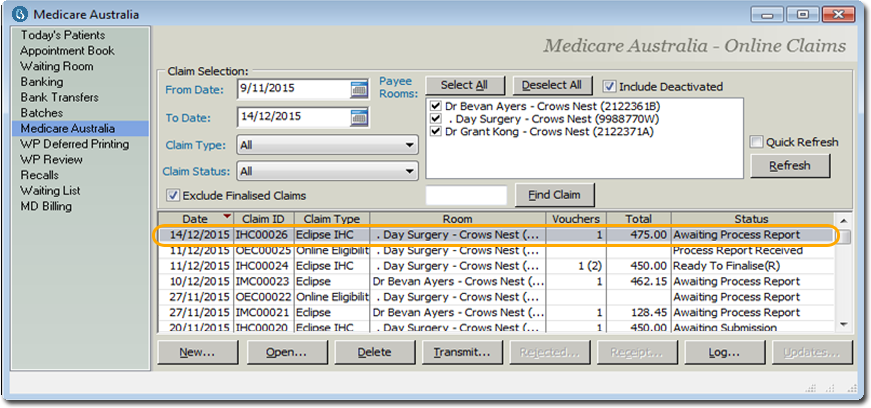
Some claims can be in the 'Awaiting Submission' status in the Medicare Australia window. Claims with this status would have failed the Client Adaptor validation and the claims will have to be edited to ensure successful submission.
-
Click Transmit to retrieve the processing report. When the
processing report is being retrieved, the response sent by the fund can be
rejected or interim or
final report.
- Rejected reports with a status of 'Ready to
Finalise(R)': If the claim is rejected when transmitting, the
status changes to 'Ready to Finalise(R)'.
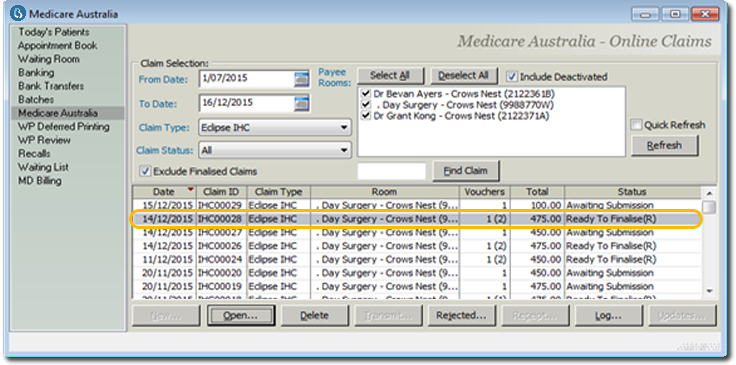
The rejected claim can be viewed by double-clicking the claim. The In Hospital Claim (IHC) Results window appears. The results of processing such as rejection code and description can be viewed. Click
to return to the 'Medicare Australia' window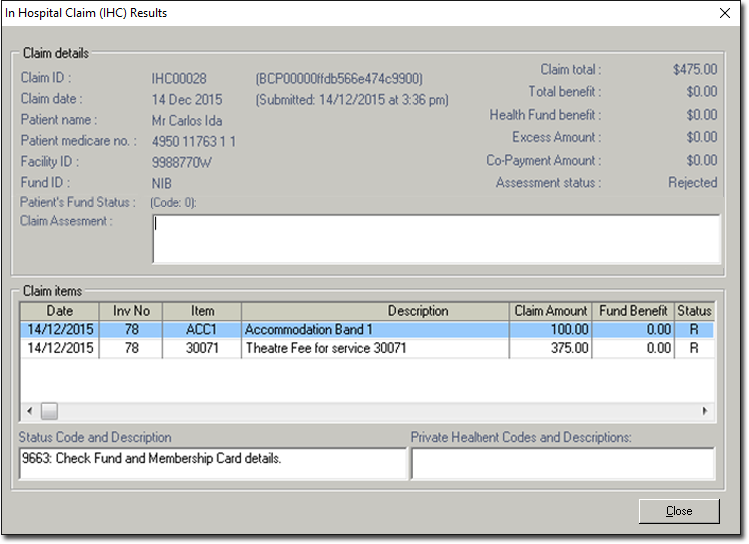
- In the 'Medicare Australia' window, click
Rejected to process the rejected claim. The
In Hospital Claim (IHC) – Rejected Items
window appears. Rejected Items can be left unpaid or written-off.
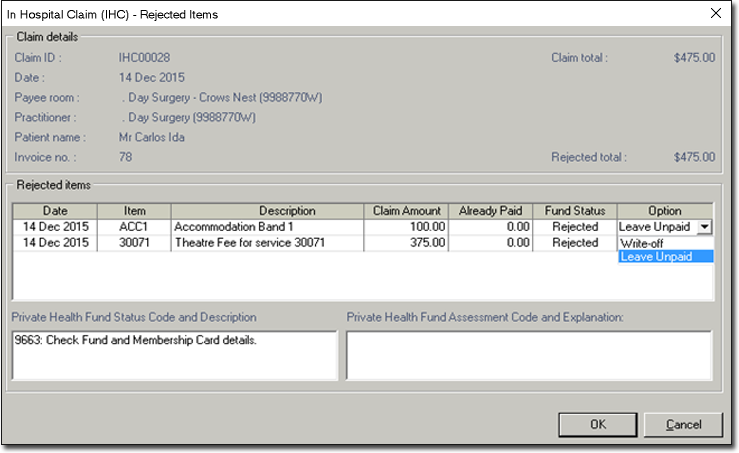
- Click OK. You will be prompted to confirm that
you want to process the rejected claim.
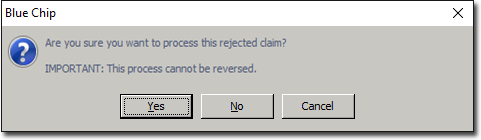
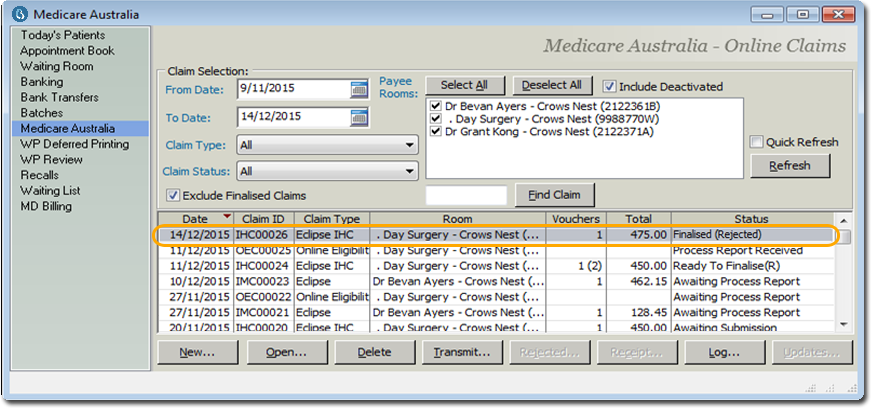
- Click Yes to the prompt to continue processing of
the rejected claim. The rejected claim is now Finalised and status is
changed to 'Finalised (Rejected)'.
- In the 'Medicare Australia' window, click
Rejected to process the rejected claim. The
In Hospital Claim (IHC) – Rejected Items
window appears. Rejected Items can be left unpaid or written-off.
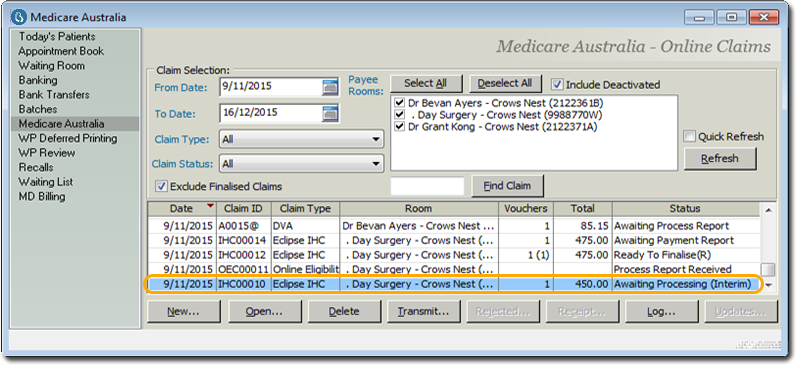
- Interim Processing Report with 'Awaiting Process Report (Interim)'
status: If the interim processing report is available after
transmitting, the status changes to Awaiting Processing (Interim). The fund
will transmit the interim report to inform the practice of the reason that
processing of the claim is not yet complete. The fund will then transmit a
final report (which will overwrite any interim reports) when processing has
been completed for the claim. After the final processing report is retrieved,
the payment report can be retrieved (see Step 5).
- Final Processing Report with 'Awaiting Payment Report'
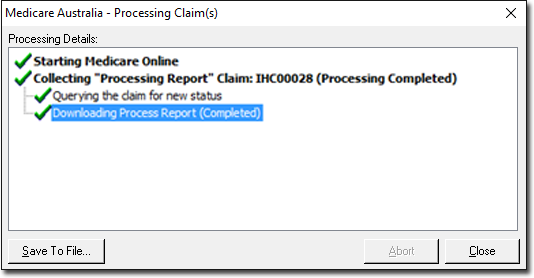
status: If the final processing report is available after
transmitting, the Medicare Australia – Processing Claim(s) window
appears, and the Final Processing Report is downloaded.
- Rejected reports with a status of 'Ready to
Finalise(R)': If the claim is rejected when transmitting, the
status changes to 'Ready to Finalise(R)'.
-
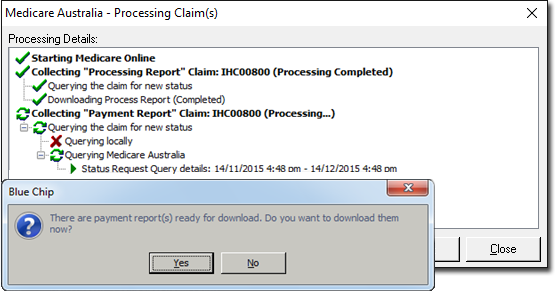
Click Transmit to download the payment report. The
Medicare Australia – Processing Claim(s) window
appears with the downloading messages. A prompt saying 'Payment report ready for
download' appears.
-
Click Yes to download the payment report.
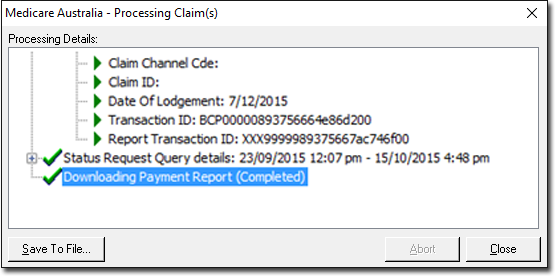
- Click Save To File to save the downloaded Payment Report. The Payment Report will consist of the summary of health fund payments, which will help the practice reconcile payments with the bank statement. It also consists of additional payment details on the paid claim.
- Click Close to return to the 'Medicare Australia' window.
-
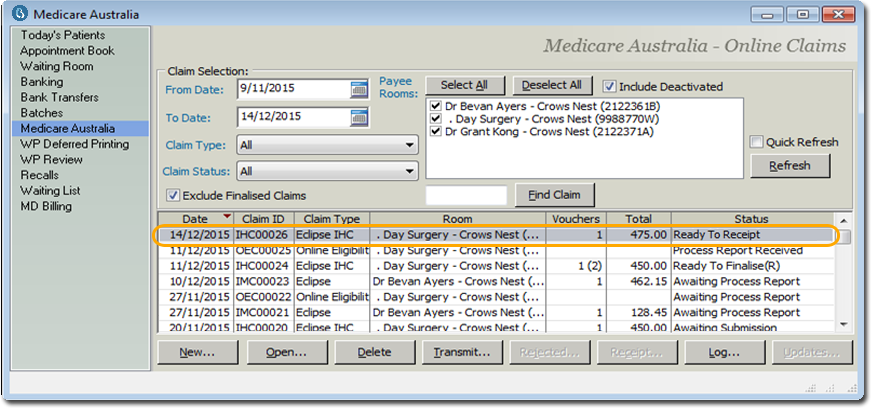
In the Medicare Australia window, the claim's status changes to 'Ready to Receipt'.
-
Click Receipt. The In Hospital Claim (IHC)
Receipt window appears. This window gives you an opportunity to
distribute the benefit paid to the Service Items in the Paid Items section.
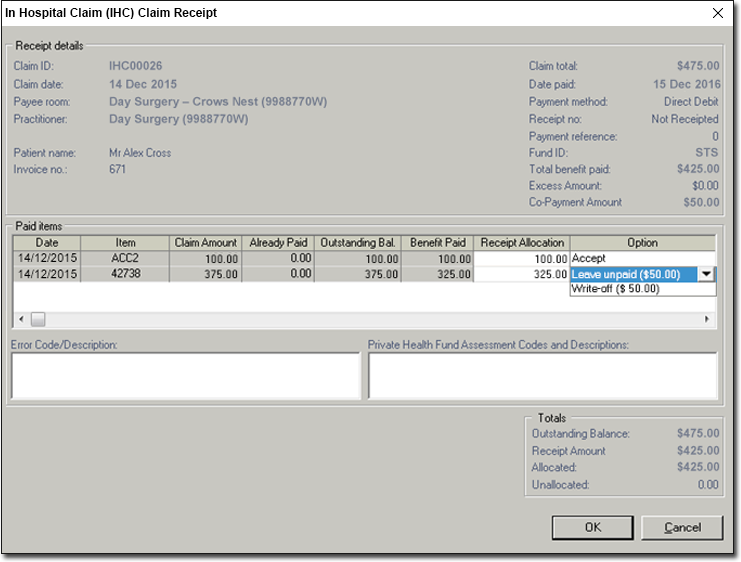
- Example 1: In the example below, the Claim Total was
$475.00, but the Total Benefit Paid was only $425.00.
- $100 is automatically allocated to item ACC2, to cover its claim amount of $100. Notice that the Option column reads 'Accept', to indicate that we will accept this allocation.
- The remaining $325 is allocated to item 42738. Note however, that the
fee for this item is $375, which is $50 more than the benefit we have
received. Therefore, we must also indicate what to do with the remaining
co-payment amount of $50; we can either leave it unpaid, or write it off,
as selected via the Option drop-down list.
- Example 2: In this example, we are claiming two prosthesis service items
(PX00AL005 for $110. and PX00G007 for $698).
- Note that the health fund paid a benefit of $808 for the first
prosthesis item, although its fee is $110. This is because, in this
example, this particular health fund did pay a benefit to cover both
prosthesis items, but allocated the payment to the first item only. If
this happens, you must manually adjust the receipt allocation.
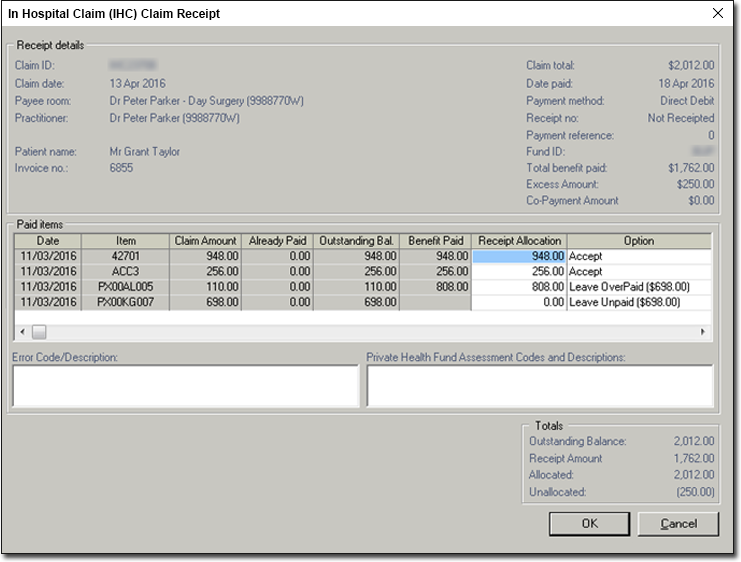
Using the example above, we would:- Take note of the Outstanding Balance ($2012.00) and the Receipt Amount ($1, 762). The difference in these amounts needs to be dealt with.
- Take note of the Claim Amounts and Receipt Allocation values for the service items being claimed.
- The first item is claimed at $948, and its receipt allocation is also $948. This item requires no adjustment.
- The second item is claimed at $256, and its receipt allocation is also $256. Again, this item requires no adjustment.
- The third item is claimed at $110, but its receipt allocation is $808. This value must be modified manually. Click within the Receipt Allocation field, and change the value to $110.
- This leaves us with a paid benefit balance of $448. We allocate
this to the last service item. Note that this service item's claim
value was $698, not $448, and hence we have an excess $250. In our
example, we have selected the option to Leave Unpaid. Alternative
you could Write Off this value.

- Note that the health fund paid a benefit of $808 for the first
prosthesis item, although its fee is $110. This is because, in this
example, this particular health fund did pay a benefit to cover both
prosthesis items, but allocated the payment to the first item only. If
this happens, you must manually adjust the receipt allocation.
- Example 1: In the example below, the Claim Total was
$475.00, but the Total Benefit Paid was only $425.00.