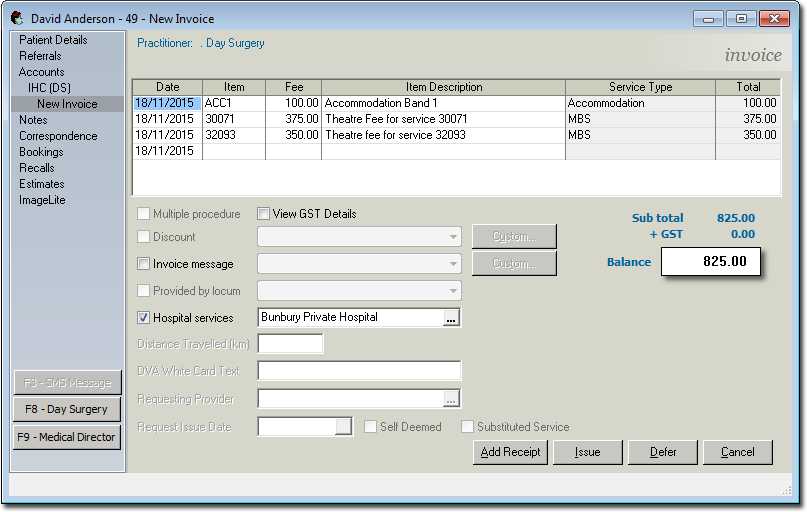
Estimates for In Hospital Claiming
Before you begin
Before you can create an estimate for IHC, you first must setup IHC in Bluechip.
Procedure
-
Open the patient's record, and select the Estimates entry in the menu.
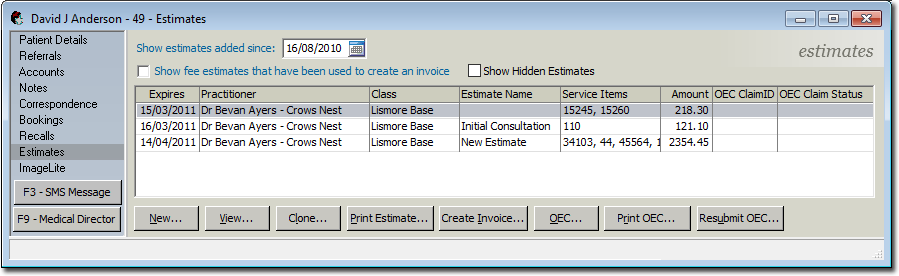
-
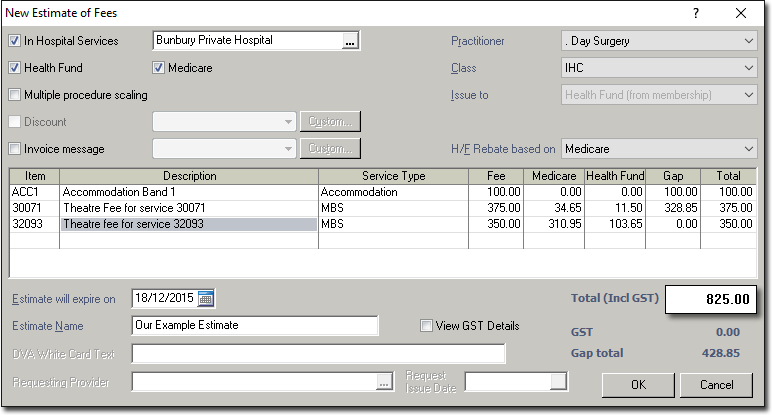
Click New. The New Estimate of Fees
window appears. Complete the new estimate as per the steps below, and the information
provided within the topic 'Creating
Estimates'. Note that this window may vary slightly depending on whether
you have enabled Quantity / Equipment ID items for Medicare or non-Medicare estimation and
invoicing. Note that Medicare and non-Medicare items cannot appear on the same
estimate together - they must be added to separate estimates.
- As this is an estimate for In Hospital Claiming, you must select the hospital
the claim relates to. Tick the In Hospital Services
check box, and then click the associated
 Ellipsis
button to select the desired
hospital from your database.
Ellipsis
button to select the desired
hospital from your database. - Tick the Health Fund check box. You can then indicate which Fee list the H/F Rebate is based on via the associated drop-down list.
- Ensure the Practitioner e.g. "Day Surgery" is selected.
- Ensure the Class selected is your Day Surgery class.
- Ensure that Issue to is "Health Fund (from membership)".
- Enter service items as desired.
- Specify the expiration date for this estimate.
- Name the estimate, for future reference.
- As this is an estimate for In Hospital Claiming, you must select the hospital
the claim relates to. Tick the In Hospital Services
check box, and then click the associated
-
Click OK to save the estimate, and close the window. You are
returned to the patient's record, where the new IHC estimate now appears.
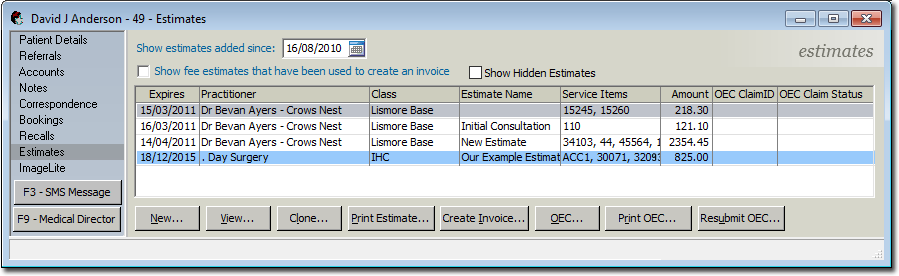
Results
This concludes the steps necessary for creating an estimate for IHC. If you want, you can now validate this estimate with Medicare, by performing an Online Eligibility Check.
What to do next
- (optional) You can also create an invoice based on this estimate, by selecting the estimate, and clicking Create Invoice. The Select Account window will appear, prompting you to select an account to create the invoice for.
- You must also indicate the Fee Source, i.e. whether you want the fees charged to
come from the estimate itself, or whether to grab the latest fees from the list the
estimate is based on.
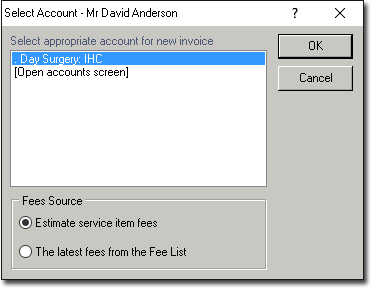 Click OK to continue. An invoice is generated and presented to you, pre-populated with the Service Items and related details from the estimate. Complete the invoice as desired. See Invoicing for more information about this window, and how to create/issue invoices. Click Issue when you are ready to issue the invoice.