Backing Up Documents
Back up documents scanned or imported into patient records using either ManageEzy or ImageLite.
Before you begin
Note:
Although you can backup the ImageLite folder separately, you
must always include it whenever you backup
the Bluechip
database.
About this task
Procedure
To back up documents:
-
Access the Backup utility:
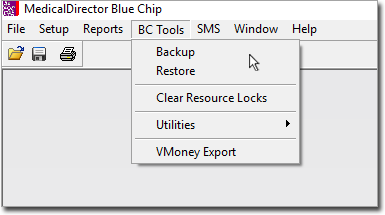
- From within Medical Director Bluechip. When run from within
Bluechip in this way, the
Backup utility can only be run on the Bluechip server computer.
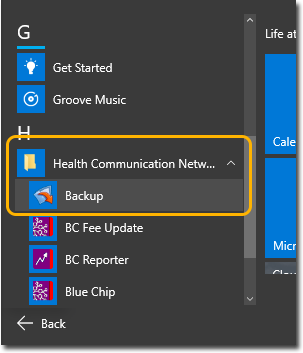
- From the Windows Start Menu.
- From within Medical Director Bluechip. When run from within
Bluechip in this way, the
Backup utility can only be run on the Bluechip server computer.
-
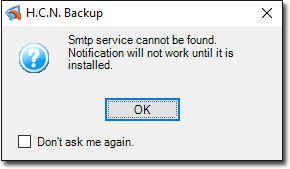
The Backup utility is capable of sending you an email notification when it has
completed. If the Windows SMTP service is not available on your computer, you will be
notified accordingly. Click OK to continue.
-
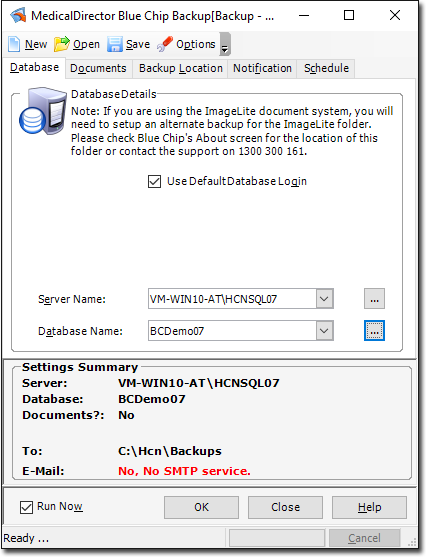
The Backup utility appears, and you are presented with the Database tab. On this tab you will indicate the name of the server computer on which your Bluechip database resides, and the name of the database you want to backup.
-
Select the server that contains the Bluechip database you
want to back-up. Note that you may have to click the
 Ellipsis to refresh the list of available servers.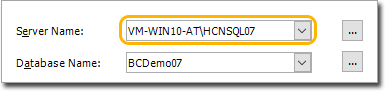
-
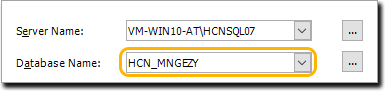
Select the HCN_MNGEZY database.
-
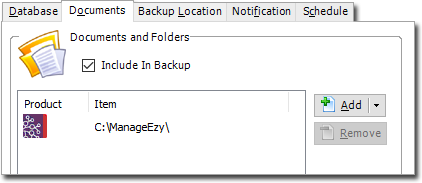
Select the Documents tab. Click the
 Caret next to the
  Add button, and select the Bluechip ManageEzy
Documents option.
Add button, and select the Bluechip ManageEzy
Documents option.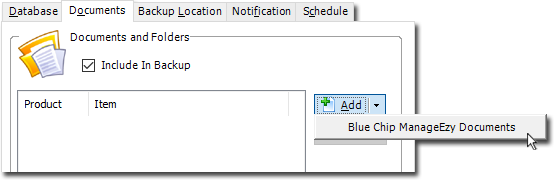
-
The ManageEzy documents folder is added to the list of folders to include in the backup.
-
If you had previously used the ImageLite utility for importing/scanning documents
into patient records, you can indicate here that you want to include these documents
with the HCN_MNGEZY backup. You may want to do this if you want all your documents
backed up together.
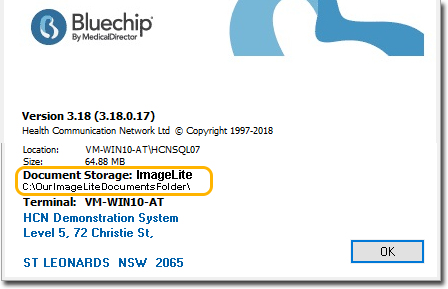
- To locate your ImageLite documents folder (if you don't already know it),
within Bluechip
select . The window that appears will indicate the ImageLite documents
folder location.
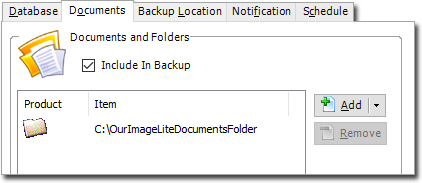
- To include this folder in the backup, select the
Documents tab, click Add and indicate the location to your ImageLite
documents folder.
- To locate your ImageLite documents folder (if you don't already know it),
within Bluechip
select . The window that appears will indicate the ImageLite documents
folder location.
-
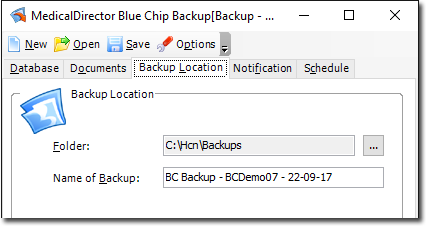
Indicate a location to save to back up to. Select the Backup
Location tab, and then:
- Specify the location for the backup. A default is offered.
- Specify a name for the backup. A default is offered.
-
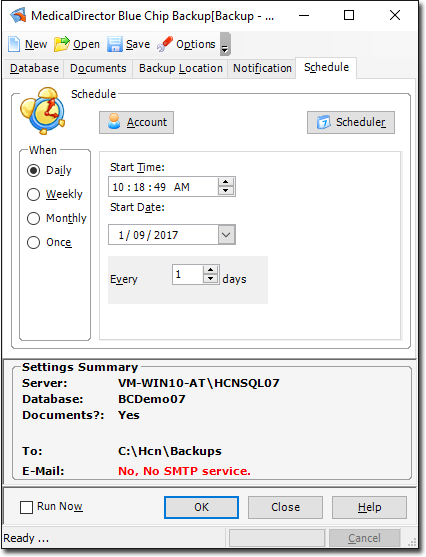
Schedule a time for the Backup to commence. By default, the Backup Utility assumes
you want to perform the backup immediately. However, you can schedule the backup to
occur at another time.
- If you want to run the backup now, go directly to Step 9.
- If you want to schedule the backup, locate and untick the Run
Now check box at the bottom-left of the window. The
Schedule tab becomes available. Configure a backup
schedule to suit your practice.
-
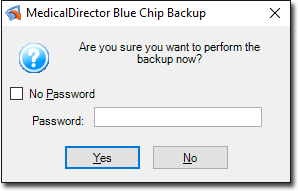
You will be prompted to confirm that you want to backup Bluechip (either now or according to your schedule), and offered the opportunity to password-protect the backup. Such backups require the password to restore them.
-
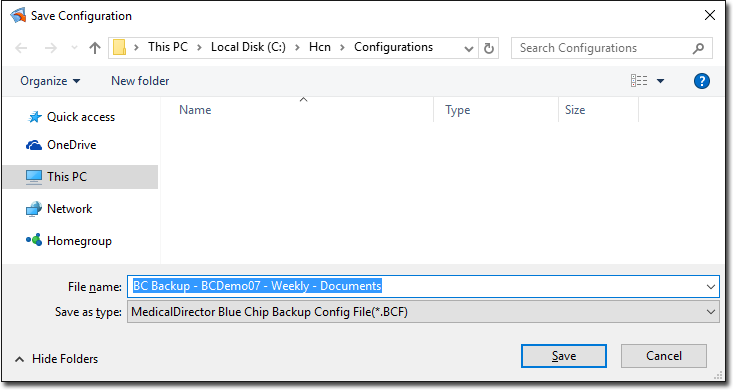
(Optional) If you have made changes to the backup settings beyond the default, you will be prompted to save this configuration.
Name each type of configuration differently to differentiate one from another. For example, in the image below we have indicated that this configuration is for our Weekly backup (as opposed to a Daily backup, or an Ad-Hoc backup).
-
If you have chosen to backup now, the backup commences. You will be notified upon
its completion.
Alternatively, if you have chosen to schedule the backup for later, simply click Close to close the backup utility.