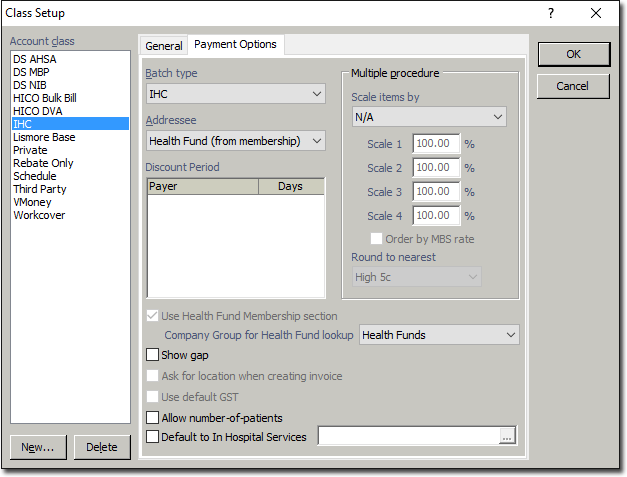
Creating a New Class for In-Hospital Claiming (IHC)
Before you begin
Before create a new Class for IHC with ECLIPSE, ensure you have configured a batch type for In-Hospital Claiming.
Procedure
-
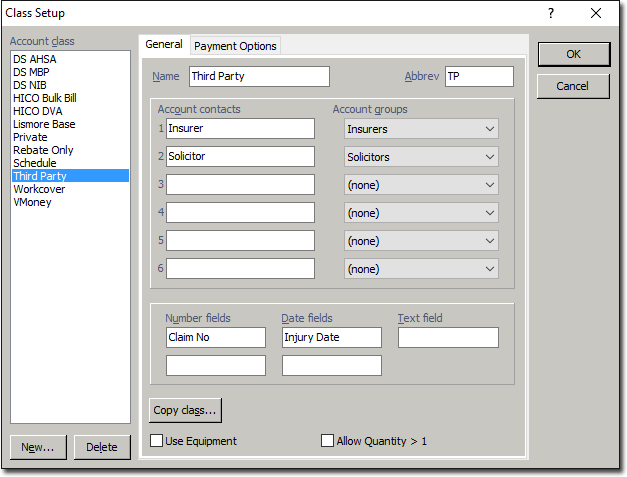
Select . The Class Setup Window appears.
-
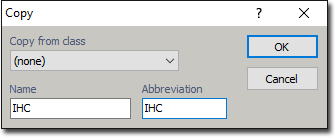
Click New. The Copy window appears.
Enter a name and abbreviation for In-Hospital Claiming, an example of which is shown
below. Because you are creating a new class, leave the 'Copy from Class' selection as
'none.
-
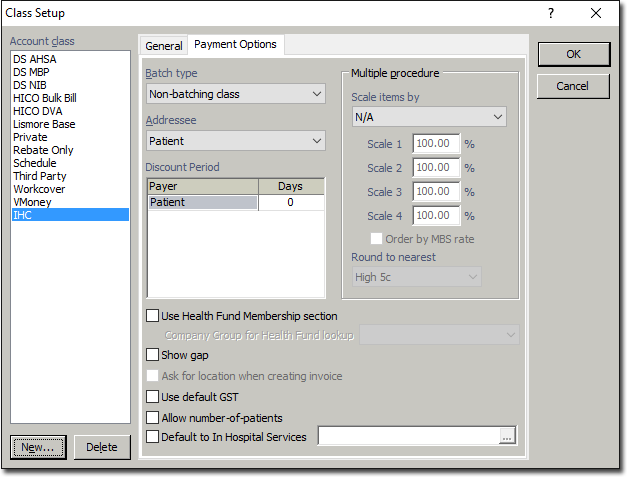
Select the Payment Options tab, and then the IHC Account Class you created, as shown below.
-
On the Payment Options tab:
- Locate the Batch Type drop-down list, and select IHC.
- Locate the Addresseedrop-down list, and select Health Fund (from membership).
- Locate the Company Groups for Health Fund drop-down list, and select Health Funds.
- For information about the other settings available see General tab settings and
Payment Options tab
settings.