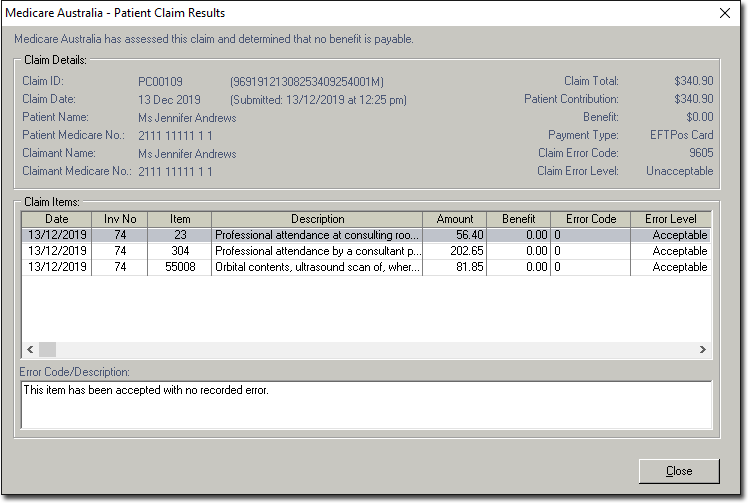
Part-Paid Patient Claims
Before you begin
For Tyro EasyClaim Patient Claims (part-paid), there is no benefit refunded to the Patient's EFTPOS card via the Tyro Terminal. Rather. a Tyro receipt is printed, and the claim is processed as per the normal Patient Claiming procedure.
Procedure
-
Within the new invoice, add Service Items as
desired.
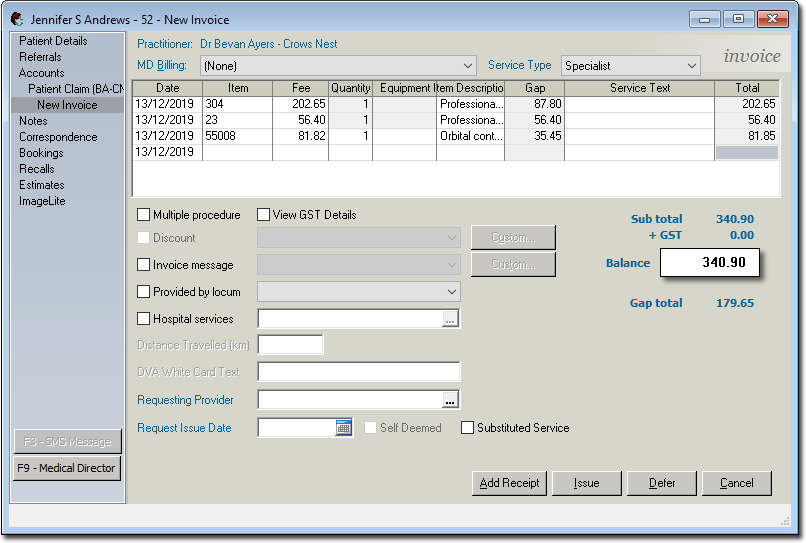
-
Click New Receipt and then within the receipt window, enter
the following:
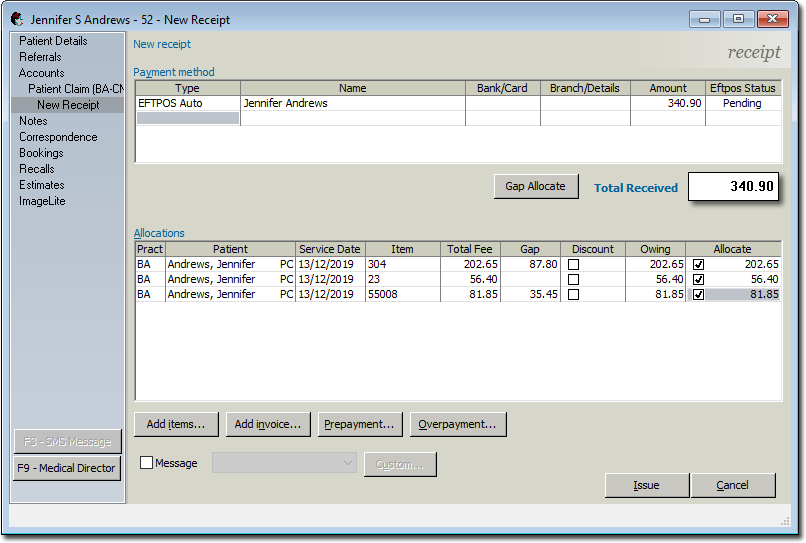
- Select EFTPOS Auto as the type of payment.
- Enter the card holder's Name.
- Enter the Amount of the payment.
- Place a tick in the Allocate check box against each service item you want to allocate payment to.
-
Process the payment with your EFTPOS device.
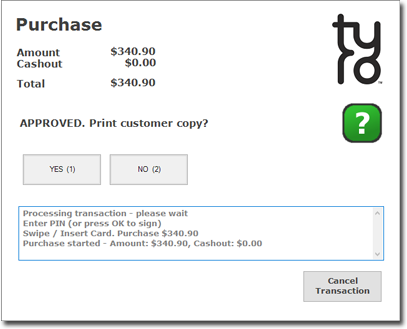
-
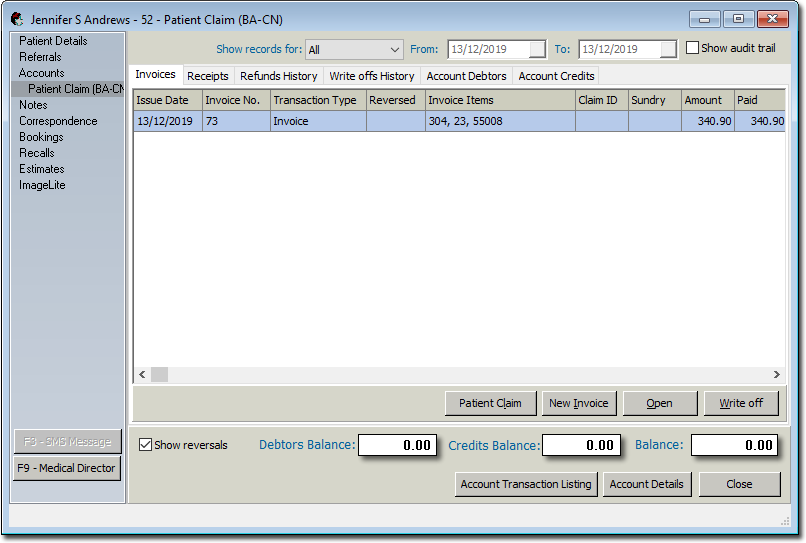
Select the Invoices tab again.
-
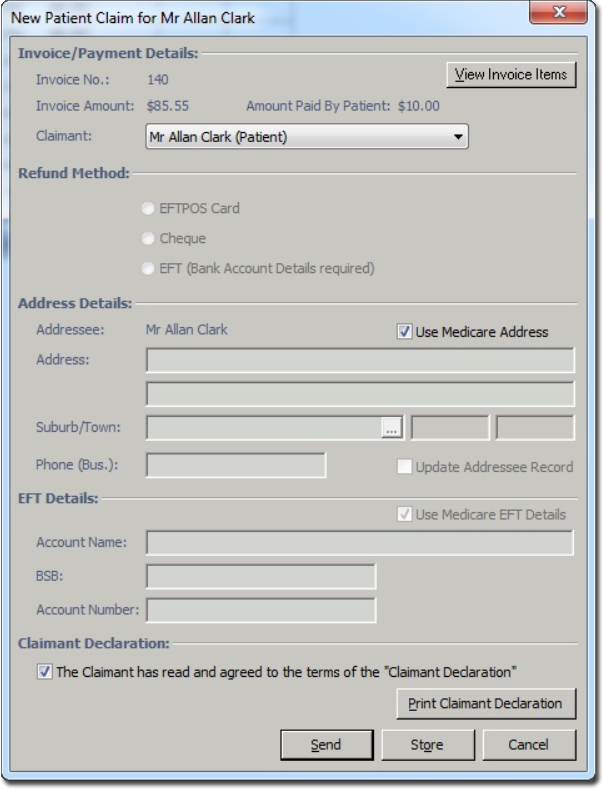
Click Patient Claim. The New Patient
Claim window appears.
Results