
Updating MBS-RMFS Fees Manually in Bluechip

Update your MBS fee schedule in Bluechip whenever there is an MBS update.

Before you begin

Note:
If your Bluechip registration has expired, you will not be able to update fees. Contact MedicalDirector Customer Service for assistance.
The Bluechip MBS-RMFS Fees Update file can be obtained:
  • By downloading and installing the BC Fee Update using MedicalDirector Automatic Update.
  • By downloading and installing the BC Fee Update from the MedicalDirector Web Site.

About this task

The update only needs to be applied once, on any computer.

Procedure

  1. Obtain the MBS-RMFS Fees Update file.
    • If you downloaded and installed the Fees Update file manually, proceed now to Step 2.
    • If you downloaded and installed the Fees Update file via the MedicalDirector Automatic Update, it will alert you to the update's availability. You can download and install the update immediately, or download it to a predefined location (configured in the MedicalDirector Automatic Updates Preferences window) for manual installation, later.
      Note:
      Apply the update immediately unless you are updating a large practice where many computers share a limited Internet connection. For these practices, the update can be downloaded once to a predefined location and installed manually to all computers. For assistance with this option, consult your System Administrator.
  2. Access the MedicalDirector website.
  3. Locate the section where the Health Fund Fee Updates are located.
  4. Locate the MBS and RMFS Fee Update and click Download.
  5. If prompted to Run, Save or Cancel the application, select Run.
  6. When running the update application, you might be prompted with a Security Warning message. If so, select Yes. This message can differ depending on which version of Windows you use.
  7. In the Fee Updater, click Next
  8. You will be prompted to launch the Fee Updater. Click Finish.
  9. In the BC Fee Update window, click Update Now. The fee updates will be loaded into Bluechip and will automatically activate when scheduled to.
    • If prompted with the following message, you must download and install the latest Bluechip Fee Activator. The Fee Activator must be applied to your server.
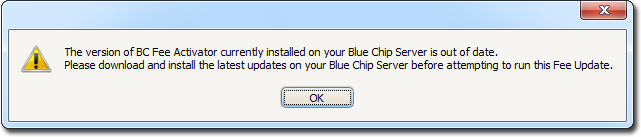
      Message stating that BC Fee Activator is out of date. Please download and install the latest updates on your Bluechip server.
      Close and run BC Fee Update again when Bluechip Fee Activator is up-to-date.
  10. When the process completes, click Close.

Results

The MBS-RMFS Fees are updated in Bluechip.