Eclipse Claiming (No Gap) with Bluechip
Before you begin
Eclipse Claims are direct communication for providers with Medicare and the Health Fund in one transaction. Eclipse Claims (no gap) amounts are as contracted with the Health Fund and the Practitioner. This handout will assist with explaining the process and the resulting report for tracking your claim
Eclipse Claims with no gap require a single account; the Eclipse account for claiming with Medicare.
Procedure
To complete a claim:
-
Click the New button. The window appears. Select the required
Practitioner, Class as Eclipse and
click OK.

-
The window appears.
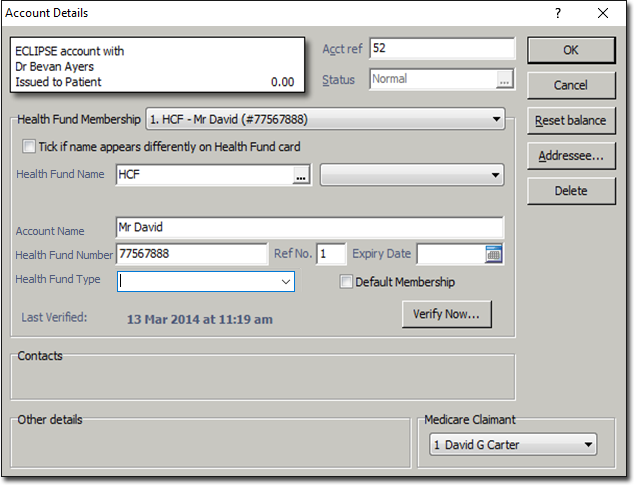
- Select Health Fund Membership as New.
- For the Health Fund field, either enter or click into
the list to select the required fund.Tip:If a Health Fund has been previously entered, it will automatically appear in the Health Fund list.
- Enter the Account Name as on the health card. If the name differs, select the option above Health Fund.
- Enter the Membership No., Ref No. and select the Default Membership option. This will generate the details onto the Patient Details screen.
-
Click the IMC Submission button to display the
New Inpatient Medical Claiming window.
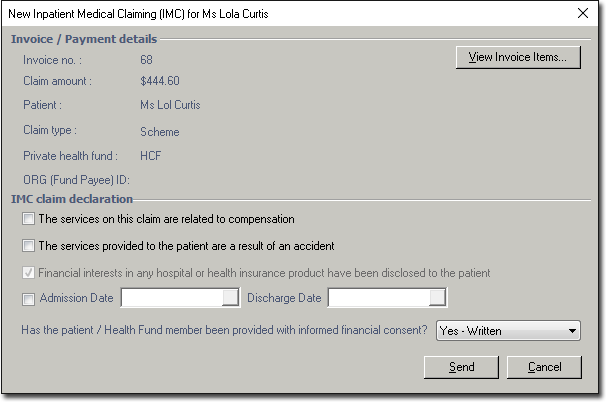
Always select Yes - Written when prompted 'Has the patient/Health Fund member been provided with informed financial content', and then click Send to transmit the claim to Medicare.Note:If a Practice is setup as Agreement, there will be two options for Has the patient/Health Fund member been provided with informed financial consent: Yes - Written or Yes Verbal. -
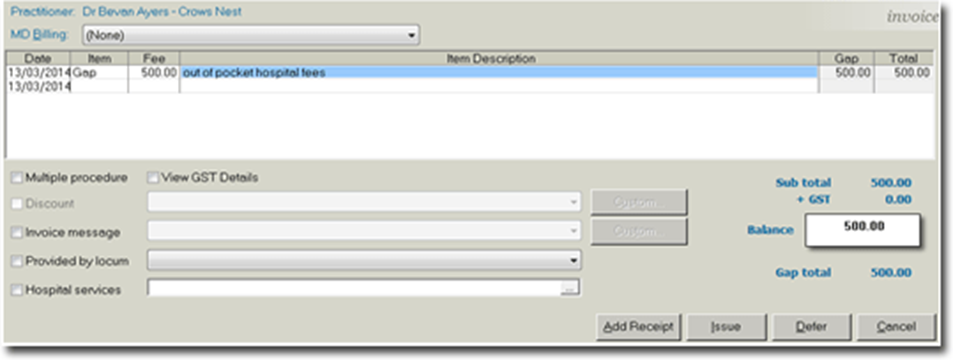
Issue an invoice for the Patients gap.
- Click New Invoice.
- Enter Item number which will auto-populate an amount (if setup) or manually enter the amount.
- Click .
- Select Referral, and click OK to the date.