Issue the Invoice
When a credit amount is outstanding in a patient record, and it is not being refunded to the patient, an invoice is required.
About this task
The invoice will balance the patient's record and also generate the amount as revenue.
Procedure
-
From the screen, highlight the appropriate account, right-click and select Open Account. An outstanding credit amount is noted.

-
Issue an invoice to balance the record.
- Click New Invoice.
- Enter the miscellaneous Service Item.
- Enter the outstanding amount in the Fee column.
- Click Issue.
- Select Referral, OK for date, click OK through the screen, and click File or Print invoice. Unable to allocate at this time.

-
The invoice has recalculated a $0.00 balance. However,
the Debtors Balance and are still outstanding. A Manual Allocation is required to reconcile
the invoices to the receipt.


-
In the patient's record, select the Account Credits tab. This
displays the receipt at the top of the screen, and the credit type details as payment
at the bottom of the screen.

-
In the Allocate Credit Amount screen, the receipt to allocate
is selected at the top of the screen; the available invoices to allocate are
displayed at the bottom of the screen. Click OK.

Tip:The Payment Amount Available and Total Allocated amount must be equal to finish the process.
Results
All Account Balances are now $0.00.

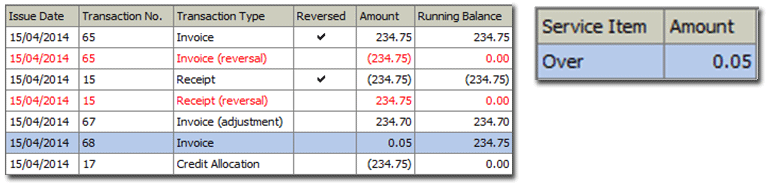
Still on the Account Credit tab, the Running
Balance now shows as $0.00, the
Credit Allocation and the adjusted
Prepayment (Service Item - Overpayment) transactions. These
are the double-sided entries required to balance the file.

It also generates to the Account Debtor tab, listing the audit
trail of transactions issued to balance the file and the overpayment amount.