Delete Multiple Patient Records
Use the Delete Patient Records Wizard to delete multiple patient records simultaneously.
Before you begin
About this task
Procedure
To delete a patient record:
-
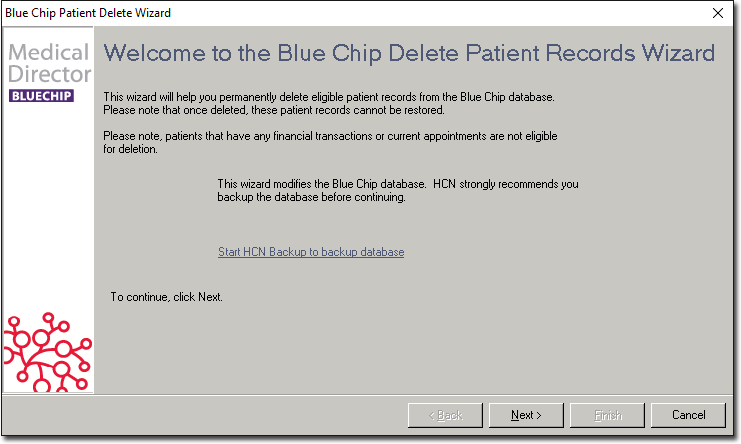
The Blue Chip Patient Delete Wizard welcome screen displays.
If required, to perform a backup before proceeding. in the welcome screen, click the
Start HCN Backup to backup database link. For more
information, see Backup and Restore.
-
To continue, click Next ﹥. You are redirected to the
Step 1: Select a database to be used for patient deletion
wizard:
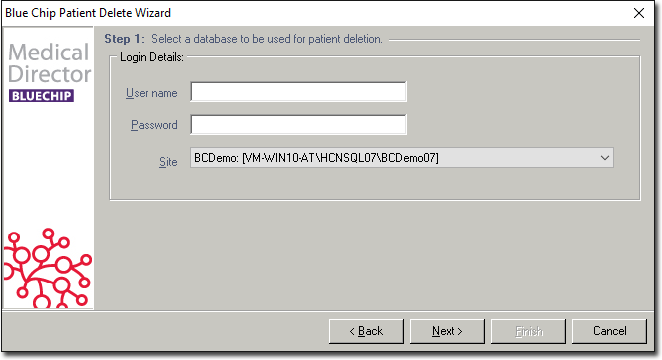
- From the Site list, select the Bluechip database from which you want to delete patient records.
- In the User name and Password fields, enter your username and password.
-
In the Step 2: Patient records eligible for deletion wizard,
hover your mouse over the required patient record, set
Selected individually or to delete all patient records,
click Select All.
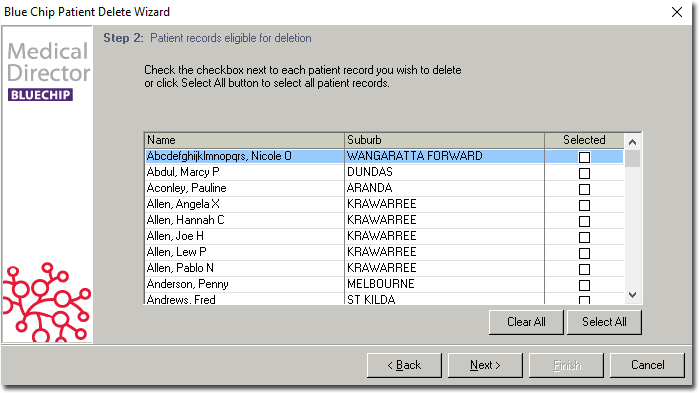
Tip:To reset the selection, click Clear All. -
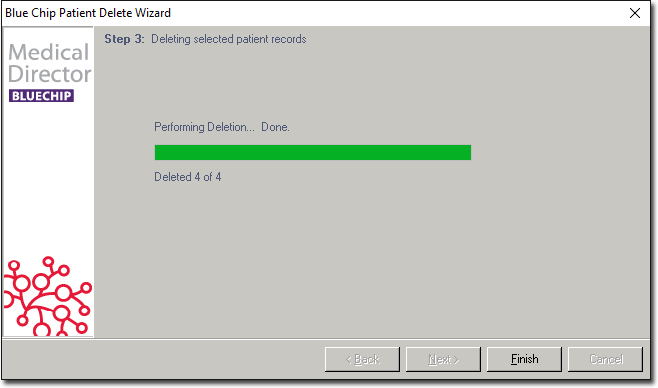
The records are deleted. You are notified when the process is complete.