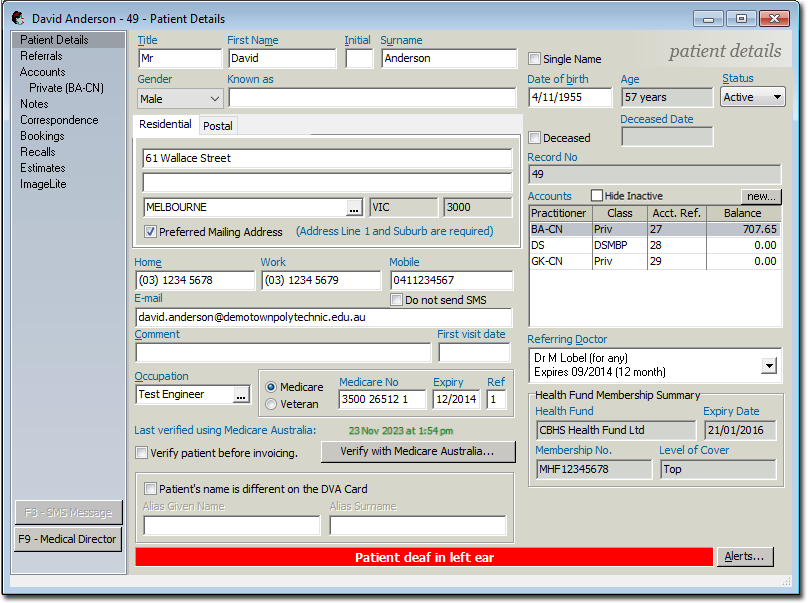
Add New Patient Records
When a new patient joins your health service, create a new patient record.
About this task
Procedure
To add a new patient record:
-
From the Bluechip main window, either:
- Click
 Folder icon
 - Press Ctrl + O
- Select
- Click
-
In the New Patient panel, enter the patient details and check
for existing patient records.
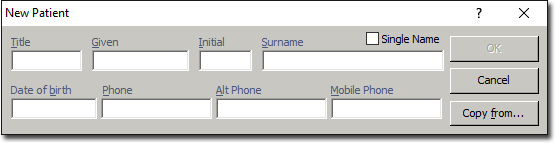
Alternatively, create this patient's record based on the details of an existing patient or parent record. Click Copy from and then select a parent/patient from the list that displays. If you use this method, the new patient's demographic data will be copied from the other's record, and you will be immediately transferred to the Patient Explorer window for the new patient, after which you can add their remaining details. If you choose to do this, skip remaining steps. Otherwise, continue to step 5. -
If your practice manually records patient file numbers, in the New File
Number panel, enter a new file number for the patient. For more
information, see File Numbers.
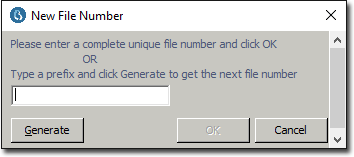
You can either:- Enter a new or unique file number
- Enter a prefix for the number and click Generate. A
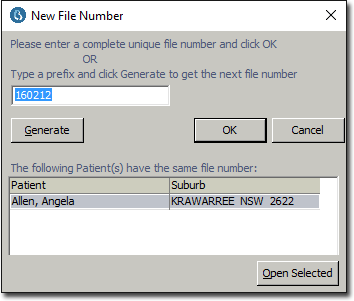
sequentially-incremented suffix is generated. If you enter a number that has
already been assigned to a patient, a prompt displays the patient to whom it is
already assigned.
Results