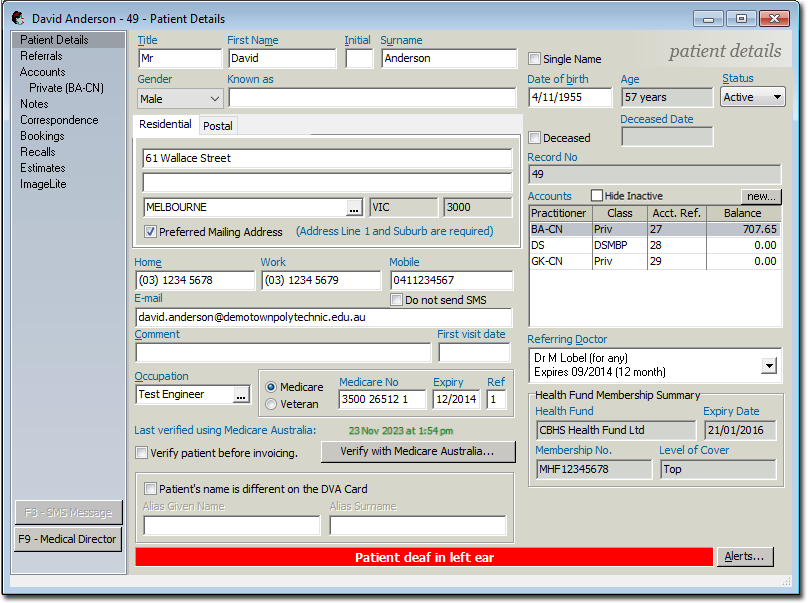
Search for an existing patient record using a patient's demographics.
About this task
Search for an existing patient record from the
Open panel.
Procedure
To search for a patient record:
-
From the Bluechip
main window, either:
- Click
 Folder icon
- Press Ctrl + O
- Select
-
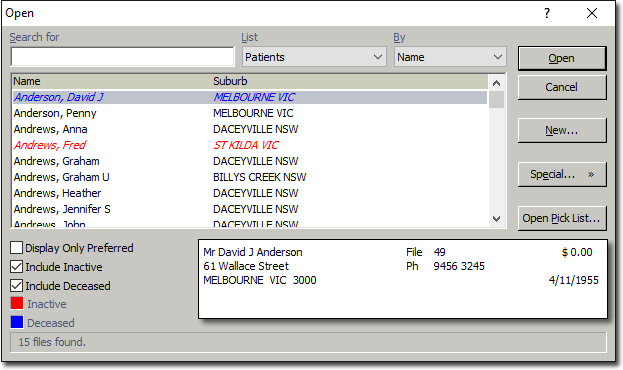
Search for a record by using one or more of the following methods:
- In the Search For field, enter the patient's given
name.
- From the List, select a record type.
- From the By list, select a criteria to search. The
criteria can include Name, File
No, Medicare No and Date of
Birth.
- If required, to display only those records that you have flagged as being
preferred, set Display Only Preferred field. For more
information, see Preferred Records.
- If required, to display patient or non-patient records that have been flagged
as inactive, set Include Inactive field. Inactive
records are displayed in red colour text. For more information, see Deactivate or Reactivate Patient Records and Deactivating/Reactivating Non-Patient Records.
- If required, to display patients who have been flagged as deceased, set
Deceased. Deceased patients are displayed in blue
colour text. For more information, see Deceased Patients.
-
From the list of matching results, select the required patient record and click
Open.
Results
The selected patient record is displayed in the
Patient Details panel.