
Creating the Day Surgery Miscellaneous Price List in MedicalDirector Bluechip
Before you begin
Procedure
-
Within Bluechip select . The window appears.
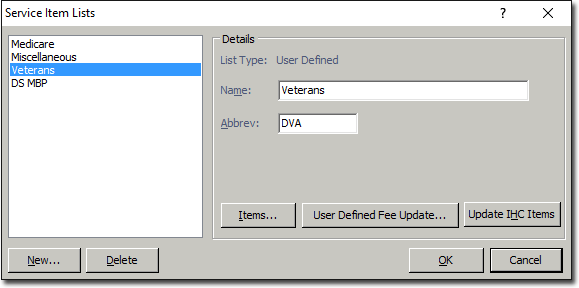
-
Click New The window appears.
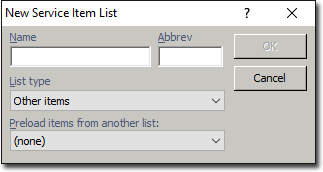
- Enter a name and abbreviation for the Day Surgery price list. Depending on individual circumstances, a Day Surgery miscellaneous price list may need to be created for each health fund.
- Click OK. You will be returned to the Service Item Lists window, where the new Day Surgery Service Item List is now displayed.
-
Select the new list.
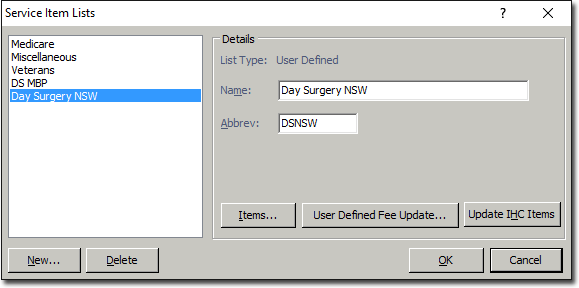
-
Click

The window appears. -
Within the Service Items window, click NewThe New Service Item window appears.
- Enter a miscellaneous item number, based upon the health fund contract (e.g. AL005).
-
Click OK.to confirm. You will be returned to the Service Items window.
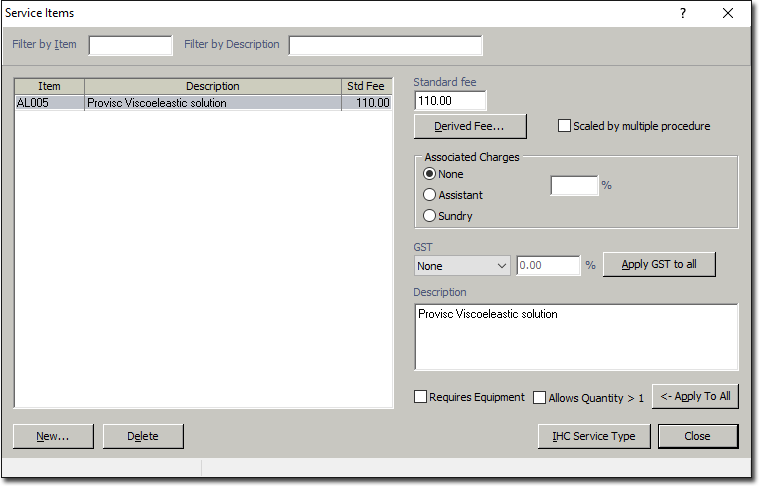
- Select the new fee.
- Within the box enter the fee based upon the health fund's contract.
- Enter the item code's description within the Description field.
- Reselect the Service Item entry to confirm your changes.
- Repeat steps 7 through to 13 to complete the price list.
-
When completed, click

and then OK.