Set up an appointment and record basic details for a new patient.
Procedure
-
Click Practice Explorer located at the bottom-right of the
Bluechip main
window.
-
Select Appointment Book in the margin menu. The Appointment Book is displayed.
-
Select a Practitioner for whom you are making the appointment from the drop-down box.
-
Select the date that you would like to make the appointment from the calendar.
- To move forward by a month, press the Page Down key, or click the down arrow where the date is displayed in the top right hand corner of the appointment book window.
- To move forward a week, press the down arrow on your keyboard.
-
Double-click a time slot in the appropriate column. The New Appointment Wizard is displayed.
-
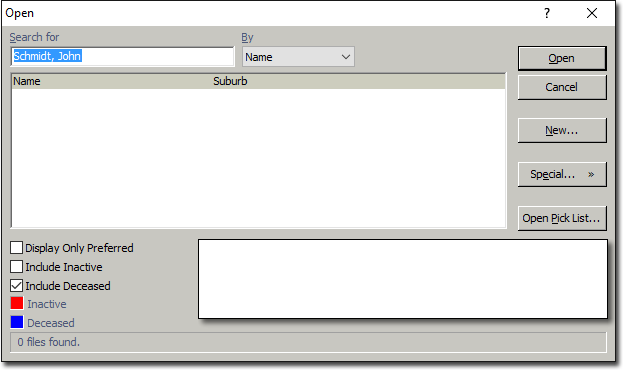
Enter the new patient's name in the Patient field of the New Appointment Wizard and press the Tab key. The Open window appears.
-
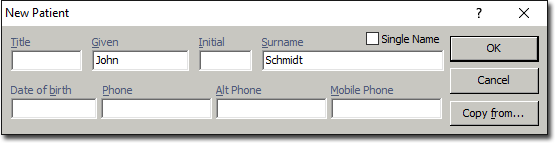
If the patient has never attended the practice before, click New The New Patient window appears.
-
Enter the relevant information and click OK.
-
Enter any other remaining information in the New Appointment Wizard.
-
To add more patient information, right click the patient in the Appointment Book and select Patient Details from the list of options.
Results
The appointment is set up for the new patient.
