
Rescheduling Appointments

Before you begin

Ensure you have elected to access to the Outlook® Style Appointment Book, via Practice Explorer Preferences.

Procedure

  1. From the Bluechip main window, click Practice Explorer.
  2. In the Practice Explorer Margin Menu, select the Appointment Book. The Appointment Book window appears. Example Appointment Book window
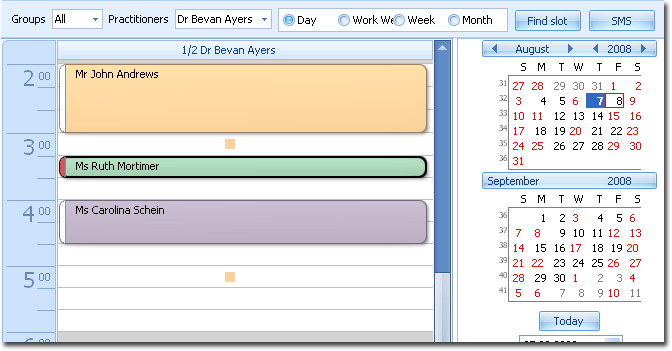
  3. Locate the appointment you want to reschedule, and then either:
    • Double-click the appointment, or
    • Right-click the appointment and select Open from the menu that appears, or
    • Click and drag the appointment to a new available slot. This action can be performed across a single doctor's appointment time line or between multiple practitioners. If you choose this method, you have finished rescheduling the appointment, and need not continue with the steps below.
  4. In the Reschedule Appointment window, modify the date for the appointment in the Date field, via one of the following methods:
    • Manually enter a date.
    • Select a date from the calendar by clicking Calendar button Calendar.
    • Find a free slot in the appointment book for the selected Practitioner by clicking Appointment Book button Appointment Book.
    • Find a free slot in the appointment book for other Practitioners by clicking Find Slot.
  5. Modify the appointment time in the Time field or click Clock button Clock to select an appropriate time.
  6. Optionally, modify the priority for the booking. This is necessary only if there is a double-booking.
  7. Optionally, modify any relevant comments in the Comments field.
  8. Click Finish.

Results

The modified appointment is saved. You are returned to the Appointment Book window, where the updated appointment details are now available.