
Making a Theatre Booking
Making a theatre booking follows the same procedure as all other appointment types.
About this task
Theatre bookings can be set up via:
- The margin menu item.
- The margin menu.
- When coming via Bookings, click New and select the appropriate practitioner from the list. The patient's name is populated automatically.
- When coming via the Appointment Book, and selecting the Practitioner, Date and Time slot of the first appointment before adding an appointment, these fields are populated automatically within the new Appointment screen. You must then select the patient.
Regardless of how you create a new appointment, it will be available in both Bookings and the Appointment Book.
For this example, the appointment is made via the Appointment Book.
Procedure
-
From the Practitioner list, select the appropriate
practitioner, and then from the Calendar tool select the required date. All
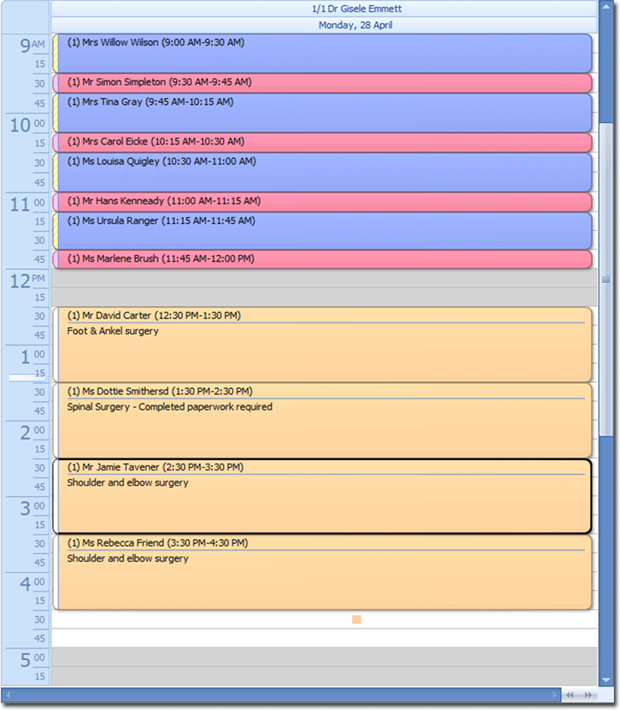
appointments recorded and available for that day will be displayed.
Example: Dr. Gisele Emmett has New and Review patients in the morning with
one New appointment, and Theatre all afternoon with one Theatre appointment available
at 4:30pm.
-
Click Ellipsis
 search for and select the correct patient.
- The Type field defaults to Theatre if the time slot selected was pre-configured as a Theatre time slot. If you discover that this slot was pre-configured as a different type, you can manually select Theatre from the list instead.
- The Duration will also default to the pre-configured duration, and can be modified manually if desired.
- The field automatically populates with the doctor associated with the patient's most recent, current referral (if attached to the patient's record). You can create a new referral via this window if desired, by clicking the drop-down arrow within the Referring Doctor field, and then clicking Add.