
Using the Calendar
Before you begin
Procedure
- From the Bluechip main window, click Practice Explorer at the bottom-right.
-
Within the Practice Explorer
Margin menu, select the Appointment
Book. The Appointment Book window appears. The
Calendar is located at the right side of the Appointment Book.
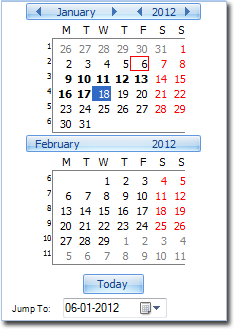
- To display a particular day, click it in the Calendar.
Results
- Today's date is outlined in red.
- The date currently in view in the Appointment Book is highlighted with a solid blue square.
- To navigate from month to month, use the left and right arrows either side of the month name at the top of the Calendar. In the example image above, the Calendar is currently focused on January.
- To navigate from year to year, use the left and right arrows either side of the year title at the top of the calendar. In the example image above, the Calendar is currently focused on 2012.
- To jump to the current day, click Today.
- To jump to a specific date not shown in the current months, select it in theJump To field.
- Days on which there are appointments scheduled are highlighted in bold.